Category Archives: Mac OS X

Installing IMAP extension for PHP on Mountain Lion

Based on Dao Hoang Son’s tutorial (itself based on Dan Spencer’s Lion tutorial), as well as a few corrections of my own, I came up with the following script. It fetches and installs University of Washington’s IMAP library, then the PCRE – Perl Compatible Regular Expressions library, and finally the PHP IMAP extension itself.

Please study the script yourself before running it, or run it line by line. It performs no error checking, meaning it might totally wreck your machine — and I’m not responsible if it does. Keep a Time Machine backup around and unplugged from the computer, in case it does.

The script wasn’t yet tested in its complete form; it’s an approximate transcript of commands I ran in shell. But since I’ll keep it around in case I ever need to re-run it, I’m fairly certain it works.

UPDATE December 24th 2012 – Merry Christmas! I’ve applied corrections based on Mehmet’s comment. He also comments you need to install autoconf before running the script (so phpize can work). I already had it installed.

Filesizes for stuff I downloaded: 1.990.304 – imap-2007f.tar.gz, 1.539.766 – pcre-8.20.tar.gz, 12.926.535 – PHP-5.3.15.tar.gz

#!/bin/bash
BUILDDIR=/tmp/phpimapmountainlion

mkdir "$BUILDDIR"
echo " "
echo "= FETCHING AND INSTALLING IMAP"
echo " "
cd "$BUILDDIR"
wget -c ftp://ftp.cac.washington.edu/imap/imap-2007f.tar.gz
rm -rf imap-2007f
tar xvvfz imap-2007f.tar.gz
cd imap-2007f
make osx EXTRACFLAGS="-arch i386 -arch x86_64 -g -Os -pipe -no-cpp-precomp"
sudo mkdir -p /usr/local/imap-2007f/include
sudo cp c-client/*.h /usr/local/imap-2007f/include
sudo mkdir -p /usr/local/imap-2007f/lib
sudo cp c-client/c-client.a /usr/local/imap-2007f/lib/libc-client.a

echo " "
echo "= FETCHING AND INSTALLING PCRE"
echo " "
cd "$BUILDDIR"
wget "http://sourceforge.net/projects/pcre/files/pcre/8.20/pcre-8.20.tar.gz"
rm -rf pcre-8.20
tar xvvfz pcre-8.20.tar.gz
cd pcre-8.20
./configure --prefix=/usr/local
make
sudo make install

echo " "
echo "= FETCHING AND INSTALLING PHP-IMAP"
echo " "
cd "$BUILDDIR"
PHPVERSION=`php --version|head -n1|cut -f 2 -d ' '`
##git clone -b "PHP-$PHPVERSION" https://github.com/php/php-src.git php-src
wget --no-check-certificate -c https://github.com/php/php-src/tarball/PHP-5.3.15 -O PHP-5.3.15.tar.gz
tar xvvfz PHP-5.3.15.tar.gz
cd `ls |grep php-php-src-|head -n1`
cd ext/imap
phpize
./configure --with-imap=/usr/local/imap-2007f --with-kerberos --with-imap-ssl
make
sudo cp modules/imap.so /usr/lib/php/extensions/no-debug-non-zts-20090626/

Mac App Store: “An unknown error has occurred”, iCloud: “Unable to sign in because of a problem communicating with iCloud. ” on genuine Mac

So perhaps you’re getting these errors?

iCloud
Unable to sign in because of a problem communicating with iCloud.
Try signing again.

App Store
An unknown error has occurred.

FaceTime
The server encountered an error processing registration. Please try again later.

Messages
The server encountered an error processing registration. Please try again later.

Perhaps you may say, “Gasp! This is supposed to be a hackintosh issue, and not an issue on genuine Macs!”

Fear not, my friend, if you have committed the ‘grievous sin’ of moving your Mac’s hard disk into another Mac. (As a penance, say 10 hailmarys quickly.) For you see, on occasion, Mac may get confused about your networking devices when you do this.

What do networking devices have to do with all this? If you read hackintosh forums, you’ll see that Apple seems to use your primary ethernet network card’s MAC address to identify the machine. And communicates the identity in some shape or form when you log into the aforementioned services.

Problem arises when your Mac’s primary ethernet card cannot be identified.

Cure for your transgression? Aside from those hailmaries, you’ll also want to delete (or move aside, or rename) /Library/Preferences/SystemConfiguration/NetworkInterfaces.plist. Then reboot. Behold! This file should be magically regenerated, and your access to iCloud and Mac App Store should be restored.

You’re welcome.

Naturally I’m not responsible if deleting this file harms your Mac, or if you do it yourself in process of deleting this file. Have an expert around. Then again, if you did move the disk around, you probably are the expert.

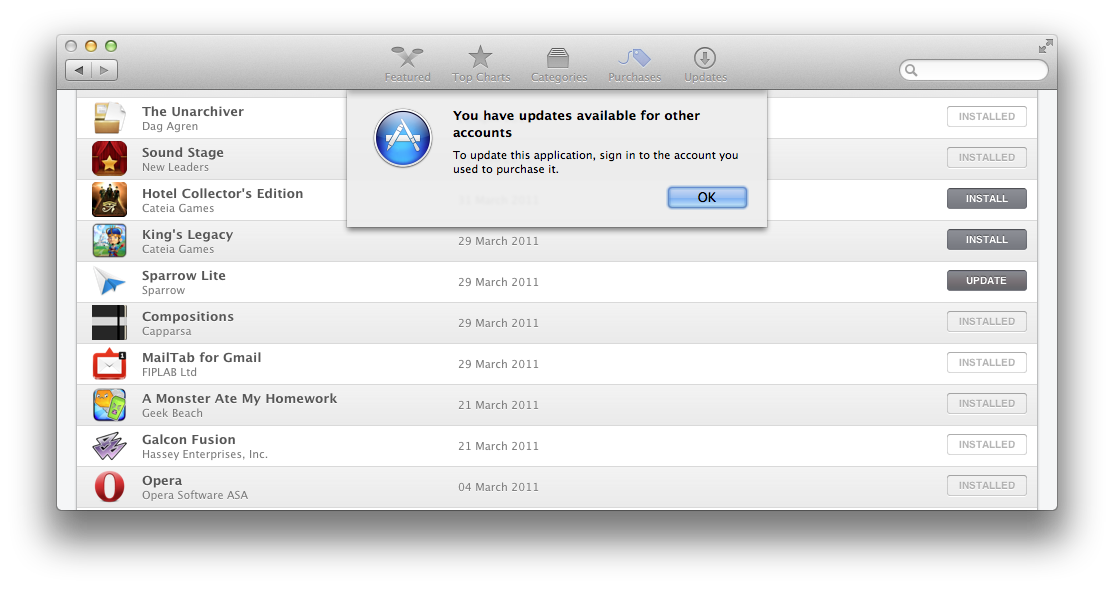
Refusing to update

“To update this application, sign in to the account you used to purchase it.”


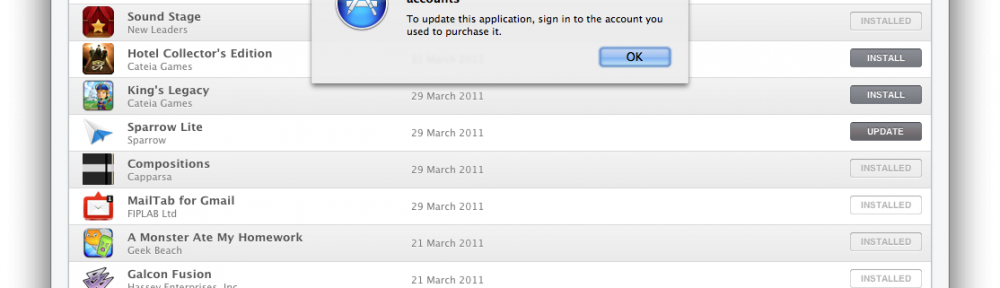
Mac App Store started rejecting updates for some apps. It offers “Update” button, but then rejects updating. The dialog on the image is common if a different Apple ID was used to purchase the app… except if that were the case, it’d be mentioning the exact Apple ID it wants be to update with.

“To update this application, sign in to the account you used to purchase it.”

And, another problem: the apps were used using the only Apple ID I use for App Store purchases.

So far, the only certain recourse was to delete the app and redownload it. If it’s associated with my Apple ID (double-check that it is!) there is no problem — the app will be newly installed and you’re good to go. Updates also only appeared when I checked the “purchases” tab, not when I went to the “updates” tab.

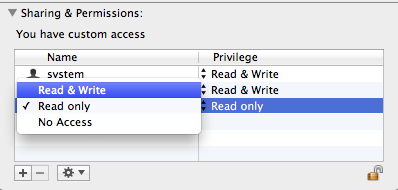
A hacker’s note: The wording of the error is strange. You see, it only mentions an account — which may refer to your local account as much as it can refer to an Apple ID. So I went and played with permissions, changing the permission for “everyone” to “read & write” for the application in question. For a few apps, update then went through. For a few, it didn’t.


The above is, naturally, from the “Get info” dialog on the app.

EDIT Oct 11 2012, 14:36 CET: User nikv has a helpful tip:

This error can happen if Settings -> Spotlight has the Macintosh HD in the Privacy section (not to be indexed). Reason being App Store uses Spotlight. If you don’t do this and Spotlight can index the Apps then it finds the updates and works okay.

EDIT Oct 11 2012, 14:58 CET: Also, while trying to figure out why Spotlight is so slow to starts indexing again on my machine, I found a thread that mentions the problem from my post. Their solution? Delete contents of /var/folders. Not the /var/folders directory itself, but its contents.

EDIT Oct 11 2012, 15:30 CET: You may need to restart your machine. (I just quit App Store.app, and killed storeagent process, but your mileage may vary.)

Unrelated but helpful tip: sudo opensnoop -n processname helps you see filepaths that a process accesses. Useful with mdworker.

Exploring Apple’s customization of titlebar in Xcode 4

As you may have noticed, Xcode’s NSWindow does not actually have a single representedURL; it has two, the project and the current in-project file.

So how did Apple achieve that?

First things first, you can start figuring that out by yourself by asking your window’s contentView for its superview. Although undocumented, enough apps seem to be playing around with this (including Xcode) that I presume Apple would be reluctant to change something important here.

Second, I’m not going to actually show you any code just yet. Perhaps in a future blog post; I did start writing something, but it’s unfinished.

Third, there is no third: let’s get to it.

Hacking tools

Playing with contentView‘s superviews can only get you so far (although, you may be able to hack something anyway). Injecting code in form of plugins into Xcode is possible, as proven by JugglerShu’s XVim.

But there’s a nicer way.

Say hello to F-Script. It’s a nice scripting language and let’s-call-it mini-IDE in itself, but there’s something far more powerful it can do.

On F-Script

It has a full fledged object browser that uses introspection to figure out what the hell exists in the view hierarchy. It also has a nice view picker so you can easily access the exact view that you’re playing with. Python may be neat for programming, but this one is just smashing for debugging GUI apps.

F-Script is not intended to be used as a standalone dev environment however; you’re supposed to put it into your app and use it at runtime. Kind of like what you can do with Python already… except this one comes with a runtime debugging GUI out of the box (and the aforementioned view picker!), and is pretty dedicated to playing with Cocoa and Objective-C (while Python can play with it through its PyObjC bridge – powerful, but not the best way to do it; also, method names become lengthy and weird when written in Python).

Note that I, for now, have absolutely no experience with F-Script as a programming language, and I don’t intend to learn it too much for now, just as I don’t intend to learn all nuts and bolts of GDB. It may be nice, but for now, it’s far, far, far more amazing as a debugging tool.

Okay, so where does playing with Xcode come in?

Unfortunately, not in the form of injecting the debugging code into Xcode and playing with it. This is the loveliest part of F-Script, however; you can inject it into any app and inspect how it works, see runtime class definitions, send messages to existing objects, etc. But not with Xcode, because of some magic that Xcode is doing causing F-Script to crash Xcode.

Side note: injection of F-Script is done via gdb. The F-Script Anywhere automator workflow intended to be put into ~/Library/Services actually consists of figuring out frontmost app’s process ID, constructing some gdb commands and running gdb. gdb commands used involve attach to existing process, then calling Objective-C method -[NSBundle load] on /Library/Frameworks/FScript.framework, and finally calling +[FScriptMenuItem insertInMainMenu] and detaching. Quite ingenious!

Finding the beast

Let’s get back to business. Although Xcode crashes, view inspector of F-Script works long enough to let us know the name of the class implementing the custom view Apple uses in the titlebar for displaying two “represented URLs”. A-ha! DVTDualProxyWindowTitleView, we’ve found you!

Now, where could this be defined? Let’s explore various private frameworks found in Xcode using class-dump (install it from MacPorts). And voila! Xcode.app/Contents/SharedFrameworks/DVTKit.framework. Using class-dump we can also see that it’s used in… DVTDualProxyWindow, a subclass of NSWindow. Wonderful!

Now, just trying to load this framework into standalone F-Script.app fails miserably and returns NO. At least for me. otool -L told me which frameworks this one depends on… so I loaded them first.

About the beast

Finally, DVTDualProxyWindow is a subclass of NSWindow which apparently overrides -setTitle: to do nothing, overrides -setRepresentedURL: to be used for the ‘project’ URL, and defines new method -setSecondaryRepresentedURL: to add the ‘document’ URL. Both of these methods are just talking to DVTDualProxyWindowTitleView. We don’t really care what happens behind the scenes; it’s just a regular view. But let’s see if it works.

Open F-Script app. Right click on the toolbar and choose ‘Customize’. Aside from customization sheet, a new window appears titled ‘Custom Buttons’. Pick one of ‘CustomX’ buttons, and select ‘Block…’. (Of course, prior to that, in the toolbar customization sheet, drag the picked button to the toolbar… you know, so you can click it.)

Now, paste in the following code.

Testing the beast

[:selectedObject | 


(NSBundle bundleWithPath:'/Applications/Xcode.app/Contents/SharedFrameworks/DVTFoundation.framework') load.

(NSBundle bundleWithPath:'/System/Library/PrivateFrameworks/DataDetectorsCore.framework') load.

(NSBundle bundleWithPath:'/System/Library/PrivateFrameworks/DataDetectors.framework') load.
(NSBundle bundleWithPath:'/System/Library/Frameworks/SecurityInterface.framework') load.
(NSBundle bundleWithPath:'/System/Library/Frameworks/Carbon.framework') load.
(NSBundle bundleWithPath:'/System/Library/Frameworks/CoreServices.framework') load.

errorPointer := FSObjectPointer objectPointer.
(NSBundle bundleWithPath:'/Applications/Xcode.app/Contents/SharedFrameworks/DVTKit.framework') loadAndReturnError:errorPointer.


" printing out an error: 
   errorPointer at:0.
"

"win := ((DVTDualProxyWindow alloc) init)."

win := DVTDualProxyWindow alloc initWithContentRect:(125<>513 extent:383<>175)
                                   styleMask:NSTitledWindowMask + NSClosableWindowMask + NSMiniaturizableWindowMask + NSResizableWindowMask
                                     backing:NSBackingStoreBuffered
                                       defer:NO.

(win setRepresentedURL:(NSURL fileURLWithPath:'/Applications/Xcode.app')).
(win setSecondaryRepresentedURL:(NSURL fileURLWithPath:'/Applications/Xcode.app')).


"Instantiate a button, put it in the window and configure it"
button := NSButton alloc initWithFrame:(247<>15 extent:90<>30).
win contentView addSubview:button.
button setBezelStyle:NSRoundedBezelStyle.
button setTitle:'Boo'.
button setKeyEquivalent:'\r'.

"An example of using F-Script blocks to handle click on button. Ignore it."
conversionScript := [(form cellAtIndex:2) setStringValue:(form cellAtIndex:0) floatValue * (form cellAtIndex:1) floatValue].

" From docs: "
"The [...] notation creates an object of class Block which represents a block of code that can be executed later (Block is an Objective-C class provided by the F-Script framework). In our block, we simply get the values of the fields in the user interface objects, perform the computation (simply involves multiplication) and put the result in a UI element.
"

"An example on how to add handling for button click. Ignore it."
"Make the script the target of the button.
The script will be evaluated when the user presses the button"
button setTarget:conversionScript.
button setAction:#value.


"Show window"
(win orderFront:nil).


]

Click on the ‘Run’ button, and type in ‘nil‘. (You don’t really care about the selectedObject, but I did not study F-Script long enough to avoid it.)

Hopefully this gives you enough idea to debug with, explore with, as well as an idea on how to implement dual-representedURL windows. Good luck and have fun! :-)

Accessing contents of a directory with App Sandbox temporary file exception

If you really, really need access to a path that Apple doesn’t want you to access while sandboxed (i.e. everywhere except what user selected, or a few paths like Documents, Music, Downloads) — you need to add a temporary file exception entitlement.

While these are intended as a stop-gap measure and are not intended for long-term use, they may help you solve your short-term problem.

How to use

After adding entitlements to your app (by marking that checkbox in Xcode), and after turning on Sandbox (again, by marking another checkbox in Xcode), you can see that a new plist-formatted file has appeared in your project with a single entry, com.apple.security.app-sandbox set to true.

Now add a new entry com.apple.security.temporary-exception.files.home-relative-path.read-only (or any of the other combinations of home-relative-path, absolute-path, read-only and read-write). Its type needs to be Array, and its contents need to be Strings.

I only used a single read-only, home-relative path. It needs to be formatted as follows: /Library/Somewhere/Some Data/

Gotchas

First of all… as mentioned, it’s not a String value, it’s an Array value containing strings.

Second… with NSFileManager, you are getting actual values for the first level of contents (e.g. folders), but when accessing subfolders you’re getting nil returnvalue and the error set to The file “2011-07-28” couldn’t be opened because you don’t have permission to view it.? Heh. See that slash on the end? It NEEDS to be there. It absolutely, 100% needs to be there, or else you’re getting the aforementioned permission denied error.

Third… you may be wondering, “How the hell am I going to get the user folder? NSHomeDirectory() is returning a path inside the sandbox container, and so do all other methods!”

Sure, if you stick to Cocoa. Apple has wrapped everything nicely, and I actually commend them on thoroughness. Even getpwent() returns incorrect values – I got /var/virusmail as the home folder.

There’s one thing that does return the username, however: NSUserName(). Don’t be easily tempted to construct the path by simply prepending /Users/. On my external drive, I tend to keep “recent cats” and “future cats”, in order to try everything out, but avoid breaking my workflow. However, it’s worthless unless I bring over the home folder, so on that installation, my home folder is not /Users/ivucica but /Volumes/Macintosh HD/Users/ivucica. Be careful, and use this solution.

#include <sys/types.h>
#include <pwd.h>

NSString * IVHomeDirectory()
{
  const struct passwd * passwd = getpwnam([NSUserName() UTF8String]);
  if(!passwd)
    return nil; // bail out cowardly
  const char *homeDir_c = getpwnam([NSUserName() UTF8String])->pw_dir;
  NSString *homeDir = [[NSFileManager defaultManager] 
                      stringWithFileSystemRepresentation:homeDir_c
                      length:strlen(homeDir_c)];
  return homeDir;
}

// simple drop-in replacement for NSSearchPathForDirectoriesInDomains(NSLibraryDirectory, NSUserDomainMask, YES);
NSArray * IVLibraryDirectory()
{
  NSArray * libraryDirectories = [NSArray arrayWithObject: [IVHomeDirectory() stringByAppendingPathComponent:@"Library"]];
  return libraryDirectories;
}

Above solution is inspired by this answer on StackOverflow.

If this helped you, leave me a comment here, and perhaps upvote those comments I made on StackOverflow. Everyone deserves encouragement now and then, right? :)

OS X’s Terminal: Getting Home, End, PgUp, PgDn to work

Apple’s Terminal on a Macbook requires a weird combination of fn+shift+left/right, fn+shift+up/down to get Home, End, PgUp and PgDn to work. And that still causes issues in a couple of places.

Despite maintaining my philosophy of “use defaults wherever possible”, I’ve decided to ditch iTerm and iTerm2 for a simple reason: after quitting from Apple’s Terminal, upon restart in Lion I get a screenful of information from my previous session. Quite handy if I had to restart a machine for some reason, but I don’t want to lose the context!

Here are two fixes found Francois Planque’s post.

First part involves fixing the escape sequences sent by the Terminal. Open Preferences (for example, by hitting Cmd+,), and navigate to Settings tab, then for the profile you want to adjust, navigate to Keyboard tab.

Over there, define the following escape sequences upon pressing home, end, page up and page down:

home: \033[1~
end: \033[4~
page up: \033[5~
page down: \033[6~

If you mess up something during input, use your mouse to hit the button “Delete one character”. To get \033 in the dialog box, just press the Escape key instead of typing backslash, zero, three, three.

After applying this, voila! vim and mc now type these keys correctly.

But, you’ve just messed up bash.

Second fix involves editing ~/.inputrc (or /etc/inputrc). Neither of these rc files existed on my machine. From Garret LeSage‘s blog post (and as suggested in a comment on Francois’s blog), I simply copy pasted the following:

"\e[1~": beginning-of-line
"\e[4~": end-of-line
"\e[5~": beginning-of-history
"\e[6~": end-of-history
"\e[3~": delete-char
"\e[2~": quoted-insert
"\e[5C": forward-word
"\e[5D": backward-word
"\e\e[C": forward-word
"\e\e[D": backward-word
set completion-ignore-case On

It’s nice to see an OS X-related tech post that’s still as useful in 2012 as it was in 2005. And it’s even nicer to see that it was originally intended for other UNIX and UNIX-style systems.

By the way: this post’s ID is 2 * 333. Make of it whatever you want. :-)